
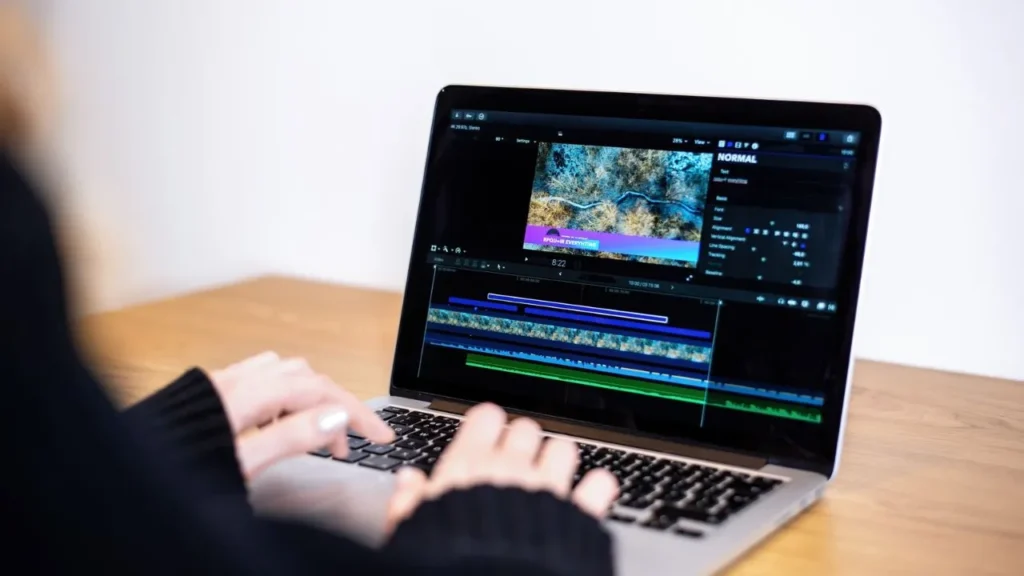
Screen recording software has become a vital resource to the users of the digital workplace in modern contexts, both in the professional domain and in the realms of teaching and content creation. Regardless of whether you are creating a tutorial, holding a training session remotely, or providing feedback to your teammates, an appropriate screen recording program can revolutionize the way you interact. These are the tools that are so powerful, enabling you to record everything that is on your screen, and you can add voiceovers and share your knowledge easily.
This is because there are many alternatives in the market, and it is difficult to find the ideal solution that fits your requirements and budget. This list of the best 10 screen recorders software on the market today will assist you in deciding on the best software to use in recording.
What is a Screen Recorder?
A screen recorder is a software that records every activity that is shown on your mobile phone or computer screen in video format. Screen recording software allows users to capture their on-screen behavior, whether to illustrate a feature of a software, make educational content, or capture video conferences. These tools usually have different recording features, whereby you can record your whole screen, individual windows, or isolated areas.
Audio recording features are also provided in the majority of modern screen recording software, so that you can add narration or record system sounds at the same time. More sophisticated solutions offer the opportunities of editing, cloud storage, and sharing in real time, and they are always priceless in the sphere of business communication, customer support, and content production.
Why Screen Recording Software Is Important
Digital communication and sharing of knowledge have been transformed with the use of screen recording software in industries.
- Improved Communication: Be able to explain difficult concepts with a drawing rather than text.
- Training Effectiveness: Develop training content that can be reused and saved, with great savings in time and resources.
- Customer Support: Show how to use the technical problems to lessen the time taken to resolve support tickets.
- Creation of Content: Writing: Teach interesting tutorials and presentations to different audiences without any hassle.
- Documentation: Document processes and workflows forming useful reference materials in a permanent manner.
Pros of Screen Recording Software
Although there are many benefits associated with using screen recording software, being aware of its benefits is a way of maximizing its use. These media make communication easier, more productive, and the development of permanent educational materials for various uses.
- Time-Saving: Save a single time and share across every time, and snuff out unnecessary descriptions forever.
- Being Visual: Being graphic helps avoid confusion and misunderstanding.
- Accessibility: Support asynchronous learning so that viewers can view it anywhere and anytime.
- Engagement: Build interactive content with annotations to maintain the interest of the audience.
- Cost-Effective: Save on the cost of training through the development of scalable education content with ease.
Cons of Screen Recording Software
Notwithstanding these strengths, screen recording software solutions have some limitations that need to be taken into account by users. Realizing these disadvantages can help have realistic expectations and select tools based on particular requirements.
- Learning Curve: There are learning platforms where one has to learn to be able to use all the features available.
- Storage Requirements: Video files take a huge amount of disk space that needs to be properly stored.
- Performance Impact: The recording can slow down older computers, and this will affect the efficiency of the workflow.
- Privacy Issues: Inadvertent capture of confidential data is a security threat at all times.
- Subscription Costs: The more advanced the feature, the higher the cost of continued payments, which may be in the form of monthly compensation.
Read More to Explore: How to Automate Lead Generation for Social Media
Top 10 Screen Recording Software
1. Screencastify
Website: https://www.screencastify.com
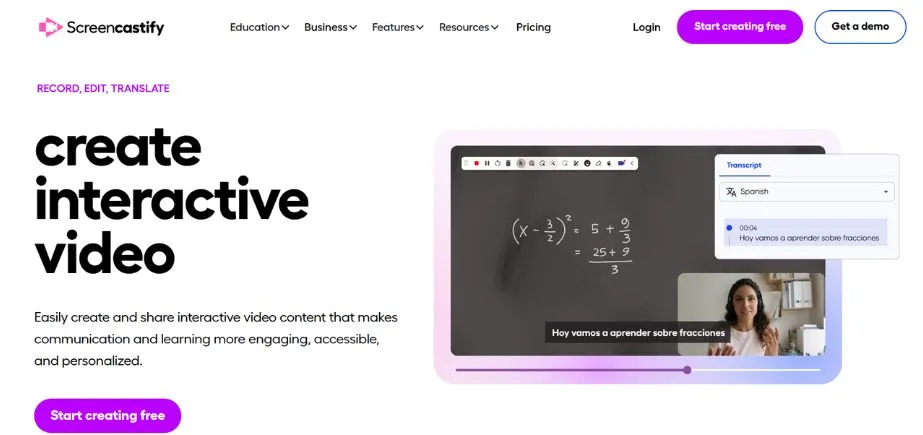
Screencastify is a multi-purpose video sales and communication tool that targets businesspeople, teachers, and video makers. Its screen recording software makes it easy to record your screen, web camera, and audio to make professional tutorials, presentations, and demonstrations. As it also concentrates on educational tools, Screencastify makes it possible to place interactive questions into videos and assign students assignments.
Business users have the advantage of having 1-on-1 sales outreach services, extensive training, an academic library, and custom team management information. The platform works well with Google Drive, and your recordings are automatically saved and can be readily accessed and shared within your organization or classroom.
Key Features:
- Custom branding
- Interactive questions
- Assignment submissions
- Google Drive integration
- Browser-based editing
Pros:
- Easy sharing
- Simple interface
- No viewer limits
Cons:
- Chrome extension only
- Limited annotations
- Basic collaboration features
Pricing: Paid plans start at $7 per month when billed annually.
2. Vimeo
Website: https://www.vimeo.com
Vimeo enters the screen recording software market with its famous video hosting knowledge to provide an effective tool to creators, enterprises, and specialists all over the globe. This platform allows recording your screen and webcam all at the same time and is perfectly aligned with the Vimeo ecosystem. The screen recorder by Vimeo is the best to make, edit, and distribute quality video content easily, as you do not have to deal with various platforms.
Inbuilt editing tools enable you to cut videos, place captions, and undertake necessary changes as soon as you want to record. Teamwork is made to be effective and easy with collaboration features such as structured folder hierarchy, customizable access control, and notifications that inform you when your stakeholders read or comment on your work.
Key Features:
- Webcam recording
- Built-in editing
- Collaboration tools
- Integration options
- Permission controls
Pros:
- Native integrations
- Real-time feedback
- Team-friendly features
Cons:
- Limited editing
- Storage restrictions
- Free plan limitations
Pricing: Vimeo starts at $12 per month, billed annually.
3. Loom
Website: https://www.loom.com
Loom is a reconfigured communication method where teams can share content built by merging screen recording software and advanced, AI-assisted features, and real-time sharing. It is a free-to-use, user-friendly platform that captures your screen, whether on Mac or Windows, webcam, or both at the same time, and thus, the video communication has become as easy as writing an email. In addition to simple recording, Loom is a holistic video messaging communication tool to exchange knowledge, feedback, and ideas with customers and colleagues.
The computer-generated AI eliminates stuttering and detractors, making it professional to the end. Videos are recorded automatically into the built-in library on Loom. The audience can react to the video by using emojis, leaving comments, and tagging the team members at certain points in the video, thereby allowing your organization to collaborate and provide feedback in real time.
Key Features:
- Instant sharing
- AI-powered editing
- Live rewind
- Transcript editing
- Drawing annotations
Pros:
- Cross-platform support
- Extensive integrations
- User-friendly interface
Cons:
- Free version limits
- Recording restrictions
- Storage limitations
Pricing: Free version available; paid plans start at $15 per user per month when billed annually.
4. BombBomb
Website: https://www.bombbomb.com
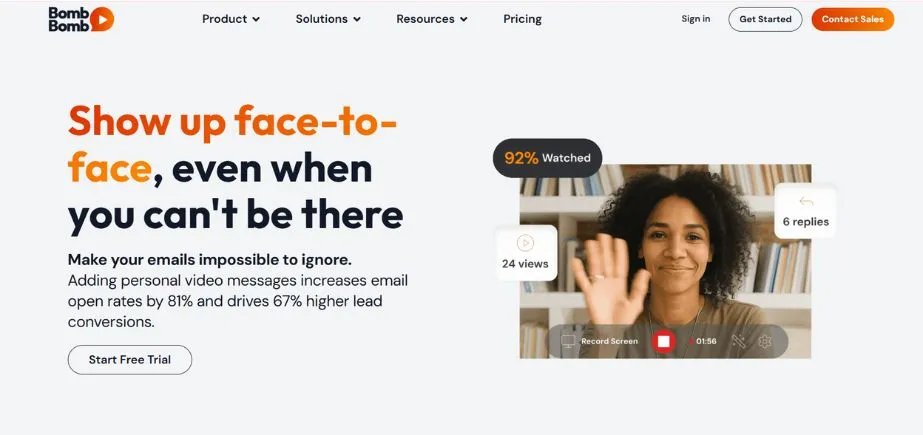
BombBomb is an asynchronous video messaging company that focuses on positioning itself as a crucial video screen recording software in the context of small businesses that require fast video solutions. Its focus revolves around the concept of integrating video usage into emails and mostly uses it as a sales prospecting and outreach tool. BombBomb is also compatible with Gmail and Outlook, unlike the old-fashioned screen recorders, which allow you to send videos in your inbox without any difficulty.
The video Library feature consists of recordings that are frequently used and stored to be used later without being re-recorded, hence saving so much time. BombBomb is an available CRM integration as a browser extension on Chrome and Edge, desktop apps, mobile apps on iOS and Android, and provides seamless integration of video into your established marketing initiatives with no extra manual work.
Key Features:
- Email integration
- Video library
- CRM connectivity
- Chrome extension
- Mobile apps
Pros:
- Desktop application
- Browser extensions
- Marketing integration
Cons:
- No free plan
- Limited editing
- Mixed customer support
Pricing: Paid plans start at $33 per month for 1:1 video messaging.
5. Zight
Website: https://zight.com
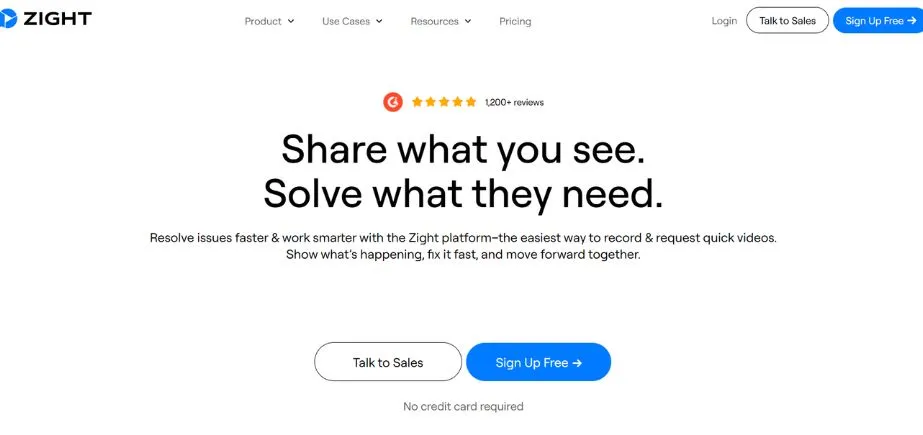
Previously called Cloudapp, Zight offers an all-inclusive screen recording software, which is not limited to screen capturing but also to screenshots, animated GIFs, and AI-assisted content creation. This is a multi-purpose platform that would use artificial intelligence to produce intelligent captions, transcriptions, and enhanced searchability of your recordings. Users are able to make time-expiring videos at subscription levels, which is especially useful in the case of sales teams that offer time-sensitive deals.
The screenshot annotation is a powerful editing tool to provide visual feedback to the image, and the creation of animated GIFs is a tool that works with screen recordings to create snippets that can be shared and used in demonstrations quickly. Zight provides customizable screen recording options to record part or full-screen shots, but the entry-level has a resolution and display capped down considerably.
Key Features:
- AI captions
- Screenshot annotations
- GIF creation
- Time-expiring videos
- Smart transcriptions
Pros:
- Multiple screen settings
- Sales-focused features
- Quick visual snippets
Cons:
- Enterprise-only transcriptions
- Basic tier limitations
- No AI in the free plan
Pricing: Paid plans start at $7.95 per month when billed annually.
6. ScreenRec
Website: https://screenrec.com
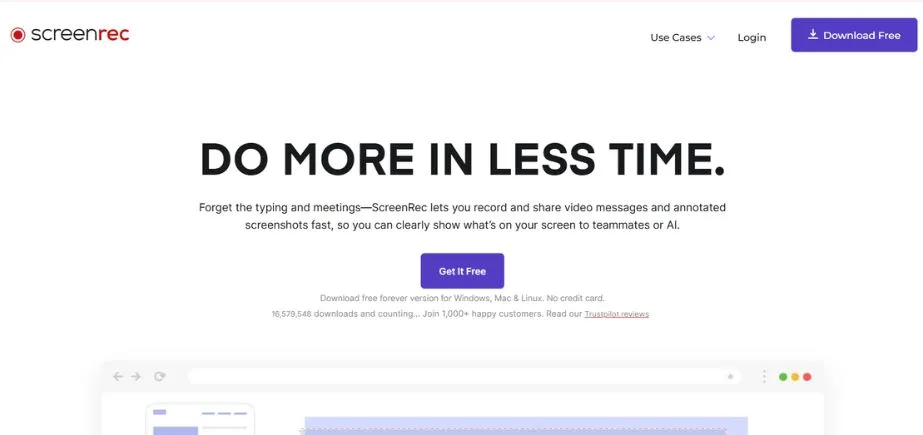
ScreenRec provides simple and to-the-point screen recording software to the end user who values simplicity over features. It is an intuitive application that is used to record screen action and video messages without bombarding users with unwarranted bells and whistles. The site offers various recording options, where you can record your whole screen, screen segments, or webcam material without needing assistance.
You can save recordings or embed instances that can be distributed at any location or create shareable links. The content management attributes are tagging of records and arranging them in collections, and the option to make them private or public. It is important to note that ScreenRec offers analytics with data on who watched your videos, when they did, and the duration of viewing videos without any watermarks or other restrictions.
Key Features:
- Multiple recording modes
- Instant sharing
- Content management
- Analytics tracking
- Tag organization
Pros:
- Completely free
- No watermarks
- Viewer analytics
Cons:
- No annotations
- Limited editing
- Basic features only
Pricing: Free version available; paid plan starts at $4 per month when billed annually.
Explore More: Best Treasury Management Software
7. SendSpark
Website: https://sendspark.com
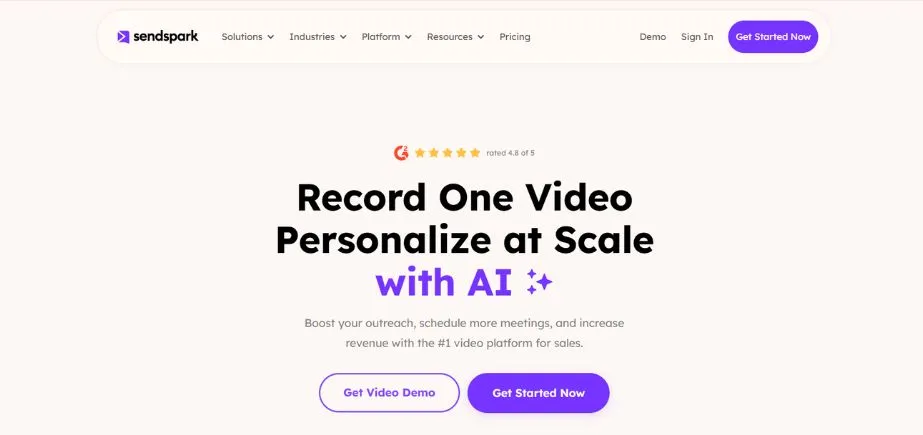
SendSpark is a revolutionary video-based business communication platform that has an innovative screen recording software that uses AI technology to make personal outreach. The most remarkable aspect of the platform is the AI voice cloning that allows you to record one video and saves you the time of re-recording a video to manually adjust it to suit different prospects. The technology uses your voice to replicate the messages to each customer, which is much more effective in the sales teams.
The contact management is simplified with the help of manual entry, CSV uploads, CRM imports, or automated setups. Its interface is user-friendly and easy to use, even without technical skills, and it is also possible to personalize marketing campaigns by embedding email sequences. Even though there are no complex annotations and editing features, SendSpark can be used to generate scalable personalized video content to help businesses that specialize in client interaction and sales optimization.
Key Features:
- AI voice cloning
- Contact importing
- Email embedding
- Automation setup
- CRM integration
Pros:
- Simple interface
- Email sequences
- Modern design
Cons:
- No annotations
- Limited editing
- Higher pricing
Pricing: SendSpark starts at $39 per seat per month.
Website: https://hippovideo.io
8. Hippo Video
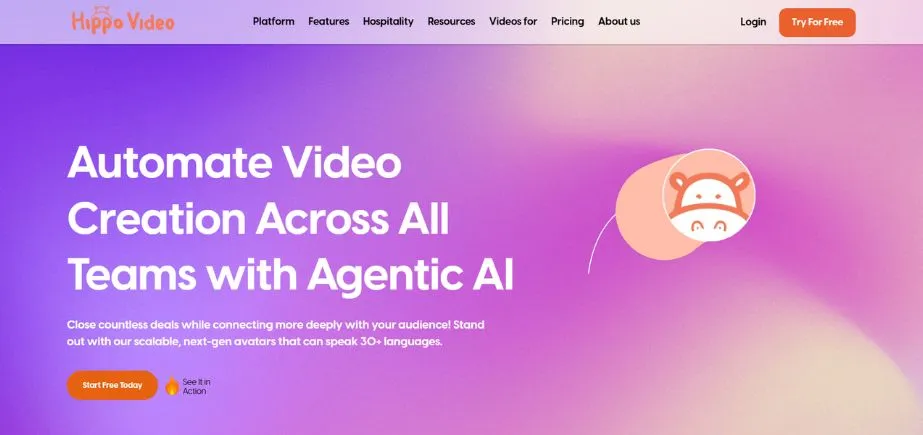
Hippo Video will remove all camera shyness because it is an AI-powered screen recording software that can produce a professional video without you on camera. Just type a script, post a presentation, or a blog post, and the AI-based platform by Hippo will create an interesting video using realistic avatars to read your work. This new method will suit best those professionals who feel uneasy when using conventional recording.
The site has a wide range of video customization features, where it provides intros, outros, logos, and customized greetings using viewer names. Small interactive details, such as custom backgrounds and call-to-action buttons, make the experience more interactive. In-depth analytics will give video performance statistics of views, plays, and completion. Integration with leading CRM and email systems is native, so your video strategy can easily be integrated into new workflows in spite of limited advanced editing features.
Key Features:
- AI avatars
- Video personalization
- Interactive elements
- Performance analytics
- CRM integration
Pros:
- Detailed insights
- Intuitive interface
- Native integrations
Cons:
- Limited free plan
- Basic editing
- Restricted capabilities
Pricing: Starts at $20 per month per user when billed annually.
9. Vidyard
Website: https://www.vidyard.com
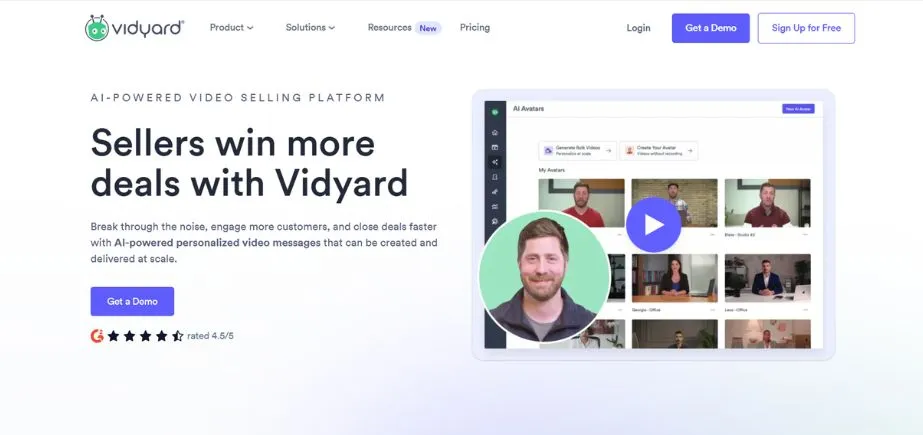
Vidyard is sales-centered screen recording software with AI-driven lead generation, prospecting, and automated follow-up functions. Vidyard is similar to Loom, with a high-end pricing model, and focuses on business applications and advanced features. The artificial intelligence scriptwriting generator develops customized video scripts, making it easier to make content by busy professionals. Vidyard Rooms is a live teamwork area allowing employees to communicate and share videos in real-time.
The uploader widget allows direct video uploading via sites or applications using embeddable tools. All service plans offer search engine optimization, and the weekly video coaching allows users to enhance the quality of content. Paid subscriptions include intro banners with the names of speakers, titles, and other pertinent details, but captioning and unlimited embeds are only available on high-tier subscriptions.
Key Features:
- AI script generation
- Vidyard Rooms
- Uploader widget
- SEO features
- Weekly coaching
Pros:
- SEO included
- Professional coaching
- Intro banners
Cons:
- Captioning limitations
- Embed restrictions
- Higher-tier requirements
Pricing: Paid plans start at $19 per month when billed annually.
10. QuickTime Player
Website: https://support.apple.com/quicktime
QuickTime Player offers Apple users built-in screen recording software, which does not require the use of third-party software. It is an easy-to-use native macOS tool to record tutorials, gameplay, and meetings, or any onscreen action on your computer. The system captures both the video and audio on your screen, including the audio of outside sources using microphones where necessary.
Since the basic editing features enable you to cut videos in advance before saving or sharing them, you end up with final products that are clean. Exporting is available in several formats, such as MOV and MP4, which means it can be used in a variety of scenarios. Being a pre-installed part of macOS, QuickTime is perfect when one wants to make quick recordings without downloading the software. Nevertheless, it is limited to Mac computers only, does not have high-tech annotation, and fails to record with iPhones, which is a contradiction when it is an Apple product.
Key Features:
- Screen recording
- Audio capture
- Basic trimming
- Multiple formats
- Pre-installed access
Pros:
- No cost
- Simple interface
- Built-in convenience
Cons:
- No annotations
- Mac only
- Limited features
Pricing: Free for all Mac users as it’s built into macOS.
How to Choose the Right Screen Recording Software
To choose a suitable screen recording software, it is essential to take precise needs and requirements into consideration.
- Purpose: Determine whether you require education, sales, or support recordings.
- Features: Identify critical features such as editing, notes, or AI-based tools that are needed.
- Budget: Take into account the pricing models based on your financial capabilities and staff.
- Integration: This is to make sure it works with other existing tools, such as CRM or email systems.
- Ease of Use: Examine learning curves to be sure that members of the team can adopt at a fast rate.
Conclusion
The success or failure of your communication, training, and interaction with your audience in the modern digital world is largely dependent on the selection of the appropriate screen recording software. Announcement: Each platform will have its special benefits based on individual needs and financial capabilities, as demonstrated by the AI capabilities of Loom and the simplicity of QuickTime.
Whether Are you an educator designing an interactive lesson, a sales professional customizing outreach, or a content creator developing a tutorial, you have a perfect fit of a screen recording software in your case. Before making your choice, think over your particular needs, budget limitations and features you want.
The tools identified in this guide are the best alternatives which have their advantages in specific aspects. To find which screen recording software can give your video communication strategy a new look and your efforts in creating professional content the upgrade it needs, invest some time in trying free trials and basic versions to see which one provides the most useful features.
FAQs
Q1: Which is the most preferable free screen recorder software?
ScreenRec and Loom have a great free version in case of simple recording.
Q2: Does screen recording software allow audio simultaneous recording?
Yes, the vast majority of screen recorders record system audio and microphone input simultaneously.
Q3: Does it make screen recorder software complicated?
The current screen recording software has user-friendly interfaces that are applicable to novices and experts.
Q4: Does the screen recording software require special hardware?
Simple computers work well with screen recording software; the older systems might slow down.
Continue Exploring: Top PPC Advertising Platforms
