

Missed messages, scattered files, and unclear deadlines can make teamwork more difficult than it needs to be. How can teams stay connected, share updates, and keep projects on track without switching between multiple apps? The right team collaboration tools can bring communication, documents, and tasks into a more organized workspace.
However, not every platform offers the same benefits. Some are designed for messaging and video meetings, while others focus on project management or file sharing. Comparing their features, pricing, and limitations can help you find a tool that fits your team’s workflow and makes everyday collaboration easier.
What Are Team Collaboration Tools?
Team collaboration tools are digital platforms that help people communicate, share files, manage tasks, and work together on projects. They may include chat, video meetings, shared documents, and project boards in one workspace.
Their value is reflected in workplace research: Microsoft’s 2023 Work Trend Index found that 68% of people said they struggled with the pace and volume of work. Well-chosen collaboration tools can help teams organize information, coordinate responsibilities, and reduce unnecessary back-and-forth communication.
Key Features to Look for in Team Collaboration Tools
The right team collaboration tool should make everyday work easier, not add more steps to the process. From keeping conversations organized to tracking project progress, certain features can make a real difference in how teams work together. Here are some key features to consider before choosing a platform.
- Communication and Messaging: Look for direct messages, group chats, discussion channels, and video meetings. Features such as threaded replies and searchable conversations help teams find information quickly and keep discussions organized.
- File Sharing and Document Collaboration: Choose a platform that allows team members to share files, edit documents together, and leave comments. Version history and access permissions can also help prevent confusion and keep shared information organized.
- Task and Project Management: Task assignments, deadlines, progress tracking, and project boards help everyone understand their responsibilities. Timeline and calendar views are especially useful for coordinating multiple projects and keeping work on schedule.
- Integrations and Automation: Integrations connect collaboration software with tools such as email, calendars, and cloud storage. Automation can handle routine actions, including reminders and status updates, reducing manual work and helping teams stay organized.
- Security and Access Controls: Business conversations and shared files may contain sensitive information. Look for user permissions, multifactor authentication, administrative controls, and suitable data protection features to help keep company information secure.
- Ease of Use and Scalability: A platform should be simple to learn and flexible enough to support future growth. Consider its mobile experience, user limits, available support, and ability to handle more projects and team members as your organization expands.
Comparison of Best Team Collaboration Solutions
| Tool | Best For | Key Features | Pricing |
| Microsoft Teams | Enterprise communication | Chat, video meetings, Microsoft 365 integration | Free; Essentials: $4/user/month |
| Slack | Team messaging | Channels, huddles, app integrations | Free; Pro: ~$7.25/user/month |
| Google Workspace | Document collaboration | Docs, Drive, Meet, shared calendars | Starts at $6/user/month |
| Asana | Project management | Task tracking, timelines, automation | Free; Starter: $10.99/user/month |
| Trello | Visual task tracking | Kanban boards, cards, checklists | Free; Standard: ~$5/user/month |
| ClickUp | All-in-one work management | Tasks, Docs, Whiteboards, Chat | Free; Unlimited: $7/user/month |
| monday.com | Custom workflows | Boards, dashboards, automation | Free; Basic: $9/user/month |
| Notion | Knowledge management | Wikis, shared documents, databases | Free; Plus: 8–10/user/month |
| Zoom | Video meetings | Video conferencing, screen sharing, Whiteboards | Free; Pro: $149.90/year/user |
| Basecamp | Project coordination | Message boards, to-do lists, schedules | $15/user/month; Pro Unlimited: $299/month billed annually |
List of Best Team Collaboration Tools
1. Microsoft Teams
- Official Website: https://www.microsoft.com/en-in/microsoft-teams/log-in
- Best For: Enterprise communication, video meetings, and Office 365 integration
- Team Communication & Messaging: Real-time chat, channels, and HD video conferencing for seamless team interaction
- File Sharing & Collaboration: Real-time co-authoring and secure file storage directly integrated with Office 365 apps
- Task Management: Built-in tracking using Microsoft Planner, To Do, and Loop components
Microsoft Teams connects workplace conversations, online meetings, and shared files in one collaborative environment, making it a useful team collaboration platform for businesses. Team members can communicate through chats and channels, make audio or video calls, and share documents for group access.
Integration with Microsoft 365 supports collaboration on files, while connected applications help teams coordinate their work. By bringing communication and document sharing together, Teams helps organizations keep discussions, resources, and everyday teamwork connected.
Pricing:
- Microsoft Teams (Free): $0 / user/month (Basic chat and 60-minute meetings)
- Microsoft Teams Essentials: $4.00 / user/month
- Microsoft 365 Business Basic: $6.00 / user/month
- Microsoft 365 Business Standard: $12.50 / user/month
Pros:
- Seamless Microsoft 365 integration
- Powerful video conferencing capabilities
- Advanced enterprise-grade security
- Extensive third-party app ecosystem
- Generous free tier features
Cons:
- Heavy system resource consumption
- Complex initial setup and interface
- Rigid channel structure organization
- Limited flexibility for non-Microsoft users
- Disjointed notifications and alert settings
2. Slack
- Official Website: https://slack.com/intl/en-in
- Best For: Real-time channel messaging, chat threads, and app integrations
- Team Communication & Messaging: Real-time chat via public channels, private groups, and direct messaging
- File Sharing & Collaboration: Drag-and-drop file sharing with in-app document previews and search
- Task Management: Built-in item pinning, message reminders, and interactive to-do list integrations
Slack gives teams a shared space to communicate through topic-based channels, direct messages, and threaded conversations. Its huddles support quick audio or video discussions, while canvases let members collect project details, notes, and resources. Teams can also connect external applications and automate routine workflows. By keeping conversations and related information accessible in organized spaces, Slack helps colleagues exchange updates, collaborate across projects, and find relevant discussions more easily.
Pricing:
- Free: $0 (90-day message history)
- Pro: ~$7.25/user/month (unlimited history)
- Business+: ~$12.50/user/month (advanced compliance)
- Enterprise Grid: Custom pricing (large organizations)
Pros:
- Intuitive user interface
- Extensive app integrations
- Powerful search functionality
- Flexible notification controls
- Reliable mobile sync
Cons:
- Expensive premium tiers
- Rapid message overload
- Disorganized multi-channel layouts
- Limited free version history
- High memory consumption
3. Google Workspace
- Official Website: https://workspace.google.com/intl/en_in/
- Best For: Cloud document editing, shared calendars, and email collaboration (Docs, Drive, Meet)
- Team Communication & Messaging: Real-time chat, video conferencing, and professional email via Gmail and Google Meet
- File Sharing & Collaboration: Live, multi-user document editing and secure cloud storage through Google Drive
- Task Management: Basic to-do tracking and project organization using Google Tasks and Google Keep
Google Workspace brings business communication and document collaboration together through Gmail, Google Chat, Meet, Calendar, Drive, Docs, Sheets, and Slides, making it useful collaboration software for teams. Team members can edit documents together, share files, manage access permissions, and coordinate meetings using shared calendars.
Changes to files are saved in Drive, helping everyone access current versions. Its connected cloud applications make it easier for teams to exchange information, schedule discussions, and collaborate on shared work from different devices.
Pricing:
- Business Starter: $6 / user/month (30 GB storage)
- Business Standard: $12 / user/month (2 TB storage + recording)
- Business Plus: $18 / user/month (5 TB storage + enhanced security)
- Enterprise: Custom pricing (unlimited storage + advanced compliance)
Pros:
- Exceptional real-time collaboration
- Highly reliable uptime
- Deep integration across apps
- Intuitive, familiar interface
- Industry-leading cloud security
Cons:
- Limited offline functionality
- High data consumption
- Basic native task management
- Costs scale quickly
- Requires a learning curve for advanced features
4. Asana
- Official Website: https://asana.com/
- Best For: Task management, tracking workflows, and cross-functional team project timelines
- Team Communication & Messaging: Built-in task comments, project updates, and team announcements
- File Sharing & Collaboration: File attachments on tasks with seamless Google Drive and Dropbox integration
- Task Management: Custom boards, lists, timelines, and subtasks for tracking work
Asana helps teams organize projects by turning larger goals into tasks with assigned owners and due dates. Members can collaborate through task comments, monitor progress using project status updates, and arrange work in list, calendar, board, or timeline views.
Task dependencies help teams understand which activities need to happen first, while reporting and automation support project coordination. These capabilities give teams a clearer view of responsibilities, deadlines, and progress across shared projects.
Pricing:
- Personal: $0 (Free forever for up to 10 users)
- Starter: $10.99 per user/month (Billed annually)
- Advanced: $24.99 per user/month (Billed annually)
- Enterprise: Custom pricing (Contact sales)
Pros:
- Highly intuitive and user-friendly interface
- Multiple project views like Kanban and Gantt
- Robust automation rules for repetitive tasks
- Extensive library of third-party app integrations
- Excellent tracking for complex, multi-step projects
Cons:
- Free tier features are quite limited
- No built-in native time-tracking feature
- Can feel overwhelming for very small teams
- Tasks can only be assigned to one person
- Export options to Excel/CSV are limited
5. Trello
- Official Website: https://trello.com
- Best For: Visual Kanban board management and small team task organization
- Team Communication & Messaging: Comments on cards, emojis, and @-mentions keep conversations tied directly to tasks
- File Sharing & Collaboration: Direct file attachments from local devices, Google Drive, Dropbox, and Box onto specific cards
- Task Management: Visual boards, lists, checklists, due dates, and custom labels track progress from start to finish
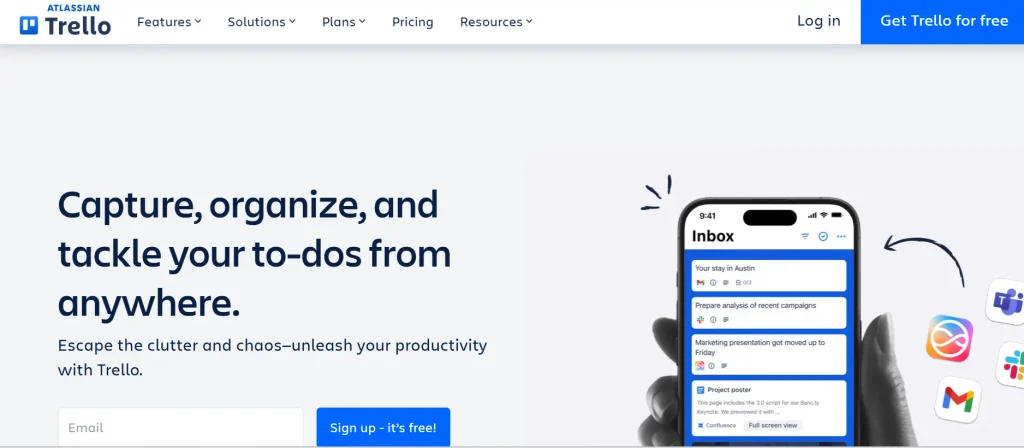
Trello helps teams organize work visually using boards, lists, and cards that represent tasks and their progress. Members can add due dates, checklists, attachments, labels, and comments to keep task details in one place. Its automation features can trigger actions when specified conditions are met, reducing repetitive updates.
This flexible board-based approach makes team collaboration easier by helping users coordinate assignments, follow project stages, and maintain a shared overview of ongoing work without requiring a complicated setup.
Pricing:
- Free: $0 (Up to 10 boards per workspace, unlimited cards, and 10MB file limit)
- Standard: ~$5 per user/month (Unlimited boards, advanced checklists, and 250MB file limit)
- Premium: ~$10 per user/month (Dashboard, Timeline, Calendar, and Map views plus workspace-level templates)
- Enterprise: ~$17.50 per user/month (Billed annually; advanced security, permissions, and organization-wide control)
Pros:
- Intuitive, drag-and-drop kanban interface
- Free tier offers highly usable core features
- Extensive “Power-Ups” ecosystem for third-party integrations
- Robust, easy-to-use built-in automation (Butler)
- Extremely fast setup with zero learning curve
Cons:
- Limited native reporting and advanced analytics
- Becomes cluttered and difficult to navigate for large-scale projects
- Lacks built-in, native instant messaging or chat channels
- No native time-tracking features without add-ons
- Rigid hierarchical structure restricted to Boards, Lists, and Cards
Also read:
6. ClickUp

- Official Website: https://clickup.com
- Best For: An all-in-one customizable work hub featuring docs, whiteboards, chat, and tasks
- Team Communication & Messaging: Centralized chat channels, task comments, and real-time team updates
- File Sharing & Collaboration: Simultaneous document editing, file attachments, and proofing tools
- Task Management: Customizable workflows, multiple views, and automated task tracking
ClickUp combines task management, team communication, documentation, and project tracking within one workspace. Teams can assign tasks, set due dates, establish goals, and organize work through multiple views and dashboards. ClickUp Docs supports shared documentation, while Whiteboards help teams develop ideas visually.
Chat, integrations, and automation connect discussions with ongoing work and reduce repetitive tasks. Its customizable workspace helps teams manage projects and shared information without constantly switching between separate applications.
Pricing:
- Free Forever: Basic features for personal use
- Unlimited ($7/user/month): Great for small teams
- Business ($12/user/month): Advanced tracking and security
- Enterprise: Custom pricing for large organizations
Pros:
- Highly customizable interface
- All-in-one feature suite
- Generous free tier
- Powerful automation options
- Diverse view layouts
Cons:
- Steep learning curve
- Frequent performance lags
- Overwhelming for small projects
- Complex mobile app navigation
- Cluttered user interface
7. monday.com

- Official Website: https://monday.com/
- Best For: A versatile work operating system with automation, dashboards, and custom templates
- Team Communication & Messaging: Contextual comments directly inside task cards and boards
- File Sharing & Collaboration: Centralized file uploads with real-time collaborative docs
- Task Management: Visual boards tracking deadlines, statuses, and custom workflows
monday.com helps teams plan projects and organize workflows using customizable boards, status columns, dashboards, and templates. Members can track responsibilities, share updates, and monitor progress across different activities. Its Workdocs support planning and documentation, while integrations connect existing business applications.
Workflow automations can trigger actions when board information changes, helping reduce manual administration. This adaptable team collaboration platform allows teams to structure projects around their processes and maintain a shared view of current priorities.
Pricing:
- Free: $0 (up to 2 users, basic boards)
- Basic: $9/user/month (unlimited viewers, 5 GB storage)
- Standard: $12/user/month (timelines, automations, integrations)
- Pro: $19/user/month (private boards, time tracking, formulas)
- Enterprise: Custom pricing (advanced security and governance)
Pros:
- Highly customizable interface
- Excellent visual tracking dashboards
- Powerful automation capabilities
- Wide range of integrations
- User-friendly drag-and-drop system
Cons:
- Steep learning curve initially
- Expensive tier pricing structures
- Limited features on lower-paid tiers
- Basic built-in reporting tools
- Occasional slow dashboard loading speeds
8. Notion
- Official Website: https://www.notion.com/
- Best For: Internal wikis, modular block-based document editing, and knowledge management
- Team Communication & Messaging: Centralized project updates via page comments and inline @-mentions
- File Sharing & Collaboration: Real-time co-editing with embedded files and media
- Task Management: Customizable Kanban boards, timelines, and connected databases
Notion gives teams a flexible workspace for shared documents, internal wikis, meeting notes, and project databases. Members can edit pages together, leave comments, organize information in databases, and connect related resources across their workspace. Project boards and timeline-style views help teams organize tasks, while shared knowledge pages make important processes easier to find. By bringing documentation and lightweight project tracking together, Notion helps teams maintain organized information and collaborate around a common source of knowledge.
Pricing:
- Free: $0 for individuals; basic blocks and limited block sharing for teams
- Plus: $8–$10 per user/month; unlimited blocks and file uploads
- Business: $15–$18 per user/month; SAML SSO and advanced page analytics
- Enterprise: Custom pricing; dedicated success manager and advanced security
Pros:
- Highly customizable interface
- All-in-one workspace consolidation
- Powerful database relations
- Extensive template library
- Rich third-party integrations
Cons:
- Steep initial learning curve
- Lack of robust offline mode
- No built-in real-time chat
- Mobile app performance lag
- Complex permission management
9. Zoom

- Official Website: https://www.zoom.com/
- Best For: HD video conferencing, webinars, and virtual team meetings
- Team Communication & Messaging: Real-time video conferencing, webinars, and persistent team chat channels
- File Sharing & Collaboration: Direct file sharing within chats and interactive real-time whiteboard collaboration
- Task Management: Basic meeting action items and seamless integration with dedicated project trackers
Zoom Workplace supports team collaboration through video meetings, chat, screen sharing, and online whiteboards. Teams can discuss ideas live, share presentations, and use collaborative documents to develop plans and record important information. Depending on the available plan, additional tools support meeting summaries, notes, and follow-up tasks. By connecting live conversations with shared resources and collaboration features, Zoom helps distributed teams communicate, brainstorm, and keep discussions moving beyond scheduled meetings.
Pricing:
- Basic: Free (40-minute limit on group meetings)
- Pro: $149.90 /year/user
- Business: $219.90 /year/user
- Enterprise: Custom pricing
Pros:
- Exceptional video and audio quality
- Highly intuitive and user-friendly interface
- Robust large-scale webinar capabilities
- Massive ecosystem of app integrations
- Excellent built-in digital whiteboarding
Cons:
- Occasional security and privacy slip-ups
- Desktop application heavily drains computer resources
- Strict 40-minute limit on free accounts
- Advanced features require expensive add-ons
- Disorganized cloud storage file management
10. Basecamp
- Official Website: https://basecamp.com/
- Best For: A unified dashboard combining message boards, to-do lists, and flat-rate team pricing
- Team Communication & Messaging: Centralized group chatrooms, direct messaging, and organized message boards
- File Sharing & Collaboration: Shared cloud storage with automatic file versioning and comment threads
- Task Management: Organized to-do lists with assignees, due dates, and trackable hill charts
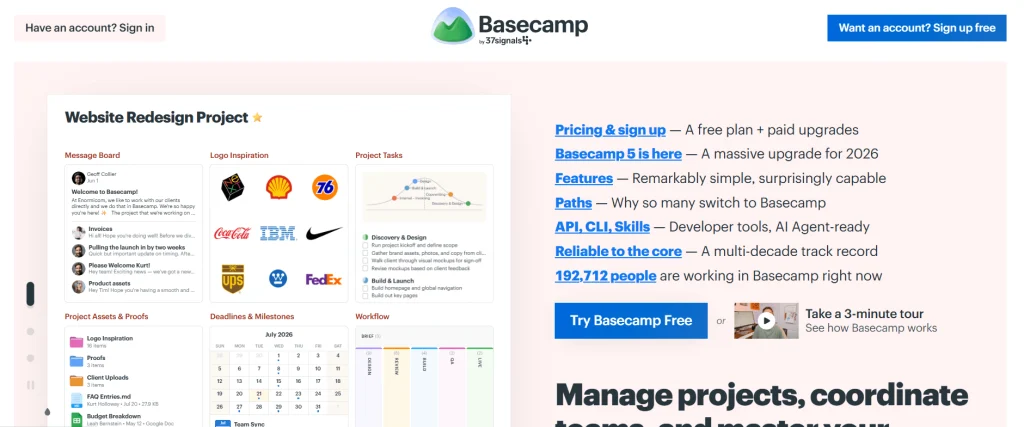
Basecamp organizes project communication and coordination through dedicated project spaces. Each project can include message boards, to-do lists, schedules, group chat, and file sharing, helping teams keep conversations and resources together. Members can assign tasks, set due dates, and follow discussions without searching through separate email threads. Its straightforward structure supports everyday planning and coordination, making project responsibilities and updates easier for teammates and invited clients to follow.
Pricing:
- Basecamp PRO UNLIMITED: $299/month (billed annually) or $349/month (billed monthly) for unlimited users and 10 TB storage
- Basecamp PER USER: $15/user/month for smaller teams, billed only for active employees
Pros:
- Simple, highly intuitive user interface
- Flat-rate pricing option for unlimited users
- Replaces multiple standalone apps seamlessly
- Excellent, client-facing access controls
- All-in-one centralized project dashboards
Cons:
- Lacks native time-tracking tools
- No built-in video conferencing capabilities
- Limited native automation features
- Rigid layout with minimal customization
- Missing advanced Gantt chart views
How to Choose the Right Team Collaboration Tool
With so many platforms available, choosing one can feel confusing. The best option depends on your team’s daily workflow, budget, and communication needs. Instead of selecting a tool based only on its popularity, compare these six factors to find one that delivers practical value.
- Identify Your Team’s Needs: Start by identifying your biggest challenges. Do you need faster communication, better document sharing, or clearer task ownership? Understanding these priorities will help you focus on tools that solve real problems.
- Compare Features With Your Workflow: Choose features that match the way your team works. Messaging-focused platforms suit frequent discussions, while project management tools are better for tracking deadlines and responsibilities. If you need several capabilities, consider an all-in-one workspace.
- Check Integrations: Make sure the platform works with your existing email, calendar, storage, and project management applications. Suitable integrations can reduce duplicate work and keep important updates connected across your team’s systems.
- Evaluate Pricing and Limitations: Compare subscription costs, user limits, storage allowances, and restrictions on meetings or automation. A free plan may work for a small team, while larger organizations might need paid features and advanced administrative controls.
- Review Security and Privacy: Check how the platform manages user access, protects shared information, and supports your organization’s security requirements. Businesses handling confidential data should also review relevant compliance features and administrative policies before adoption.
- Test Before Making a Decision: Use a free plan, trial, or product demo to see how the tool performs in real working conditions. Ask team members to test its main features, and assess whether it improves coordination without making daily tasks more complicated.
Conclusion
Making work simpler, clearer, and easier to handle is more important for effective teamwork than simply putting everyone on the same platform. The right team collaboration tool can help your team spend less time chasing updates and more time turning ideas into results.
Before making a decision, think about your team’s daily challenges, working style, and budget. Test a few options, involve your team in the process, and choose a solution that feels natural to use. After all, the best collaboration tool is the one that fits seamlessly into your workflow and helps everyone work better together.
FAQs
1. What Are Team Collaboration Tools?
Team collaboration tools help people communicate, share files, manage tasks, and coordinate projects in one digital workspace.
2. Which Team Collaboration Tool Is Best For Small Businesses?
The best choice depends on your needs, budget, and team size. Look for an easy-to-use platform with essential features and affordable pricing.
3. Are Team Collaboration Tools Available For Free?
Yes, many platforms offer free plans or trials. However, storage, user limits, and advanced features may be restricted.
4. What Features Should Collaboration Software Include?
Useful features include messaging, file sharing, task management, integrations, access controls, and project tracking.
5. How Do Collaboration Tools Help Remote Teams?
They help remote teams share updates, attend virtual meetings, access files, and coordinate work from different locations.
6. Can Team Collaboration Tools Replace Email?
They can reduce internal email by keeping discussions and updates in one place, but email is still useful for external communication and formal messages.
7. How Should I Choose the Right Collaboration Tool?
Identify your team’s main needs, compare features and pricing, check integrations and security, and test the platform before committing.
