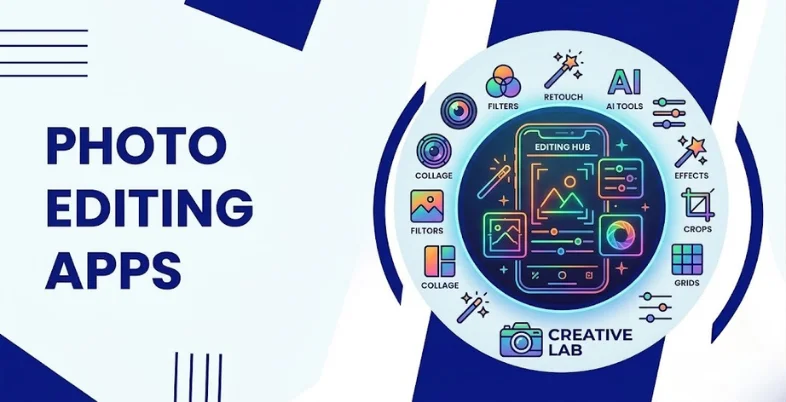
It is not necessarily true that a good picture has to be taken with a costly camera and advanced devices. It may simply need one of the best photo editing apps to help improve lighting, coloring, and other aspects and effects.
There is more to today’s photo editors apart from filters; some features offered include RAW editing, selective editing, background eraser, advanced enhancements using AI, object removal, graphic designing, etc.
Different apps cater to different purposes; hence, the best choice will depend on personal requirements. Read ahead to know more about these apps and their differences, weaknesses, platform support, subscription models, etc.
How Should You Evaluate the Apps
Every application gets evaluated against six pragmatic criteria:
- Editing: Exposure adjustments, color correction, image cropping, image retouching, support for RAW format, etc.
- User-friendliness: Ease of use by novice users and productivity of editing operations.
- Freely available/quality: Availability of basic functions free of charge and price of advanced functions.
- Compatibility: Support of Android, iOS, desktop, and web platforms.
- Creativity: Applicability to work with photographs, portrait retouching, image compositing, filters, graphics designing, etc.
- Work flow and export capabilities: Organisation of photos and photo processing; batch editing and synchronization; export of edited images, etc.
Availability/performance may depend on country, platform used, account type, etc.
Why Use Photo Editing Apps?
Photo Editing apps enable us to increase our images’ quality, to be more creative and to pre-process photos for various uses.
- Improve image quality: Brightness, exposure, contrast, shadow, and sharpness
- Improve colors: Obtain rich, cinematic, vintage or natural look
- Image retouching: Blemishes removal, perfect lighting of the face
- Eliminate distractions: Take advantage of healing brush or one of the AI technologies that we support to get rid of the unnecessary objects
- Create social media content: Compositions, thumbnails and posters creation
- Save time on work: Apply presets, automate tasks as much as possible too save time
- Learn about photography: Understand such topics as composition, exposure, lighting and color balance
How to Choose the Best Photo Editing App
- For basic editing: Cropping, brightness, contrast, and color settings are offered by both Google Photos and Snapseed
- For work purposes: RAW support, processing in deep bit depth, color correction, etc., should be considered. Thus, Lightroom is going to be your best bet.
- For portrait retouching: Facetune is aimed at selfies retouching and facial edits, while Lightroom could be used for lighting and color correction of portraits.
- For creative illustration-like photos: VSCO offers you film-like filters; Picsart features stickers and cutouts.
- If you do graphic designing: One image combined with the text, branded images, template designs.
- AI-driven photo editing capabilities: It is crucial to determine whether the software enables users to get background removal, objects deletion or clean-up, generation editing, auto sharpening of images and all necessary edits for a fee.
- Limited budget: Analyze carefully all the free capabilities of the tool as the application may be available at zero cost but it can be lacking in tools or capabilities.
List of Best Photo Editing Apps
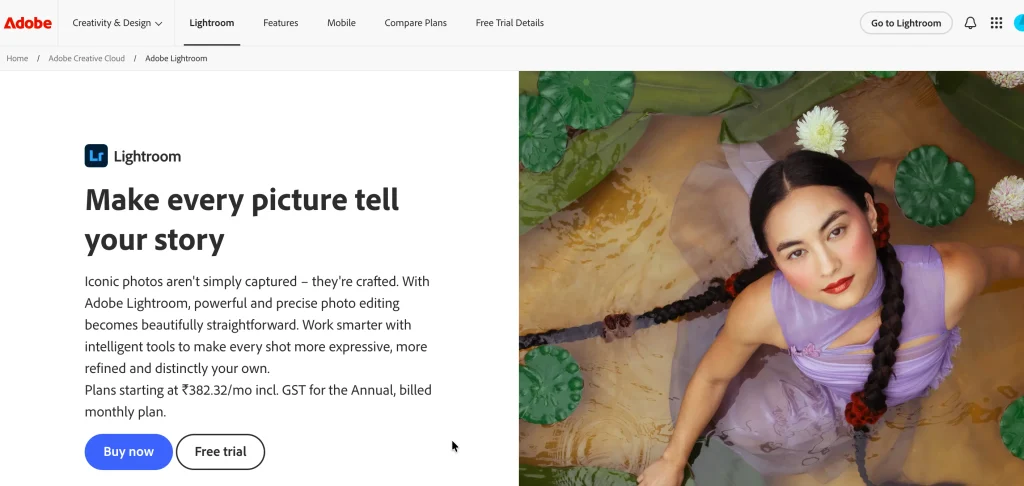
1. Adobe Lightroom
- Best for: Photography, color correction, and uniform editing
- Platforms: Android, iOS, Windows, macOS, and web, with varying features.
- Official website: https://www.adobe.com/products/photoshop-lightroom.html
Adobe tries that professional photographers find helpful for their needs related to adjusting lighting, color, and details is Adobe Lightroom. The strengths of this program include its exposure correction features, as well as color grading, masking, raw processing, noise reduction, preset management, and organizing of photos.
Pros
- Outstanding color correction and tonality options.
- Presets enable users to maintain consistent look and feel.
- Compatible with suitable raw formats.
- Ideal for both amateurs and professionals.
Cons
- Advanced tools require subscription.
- Interface might seem confusing at first.
- Cloud-based storage and advanced processes increase expenses.
Pricing:
free version is restricted; paid subscriptions are available.
Why choose it?
Adobe Lightroom is good at color corrections of photos from travel, portrait, landscape, and social media genres.
2. Adobe Photoshop
- Best for: For retouching, making composites, and manipulating images.
- Platforms: Windows, macOS, web, and supported mobile devices.
- Official website: https://www.adobe.com/products/photoshop.html
Adobe Photoshop is one of the most versatile photo editing apps that not only helps with regular photo editing but also allows users to create layers, use masks, make selections, and access advanced retouching features. These tools can be used to create composites and combine multiple images. Additionally, it offers AI-powered features for adding, generating, and enhancing images.
Pros:
- High degree of freedom in creative work.
- Precision in using selections and retouching tools.
- Composing and designing features.
Cons:
- Higher difficulty in comparison to other mobile apps.
- Full desktop functionality generally requires a paid plan.
- Some workflows need capable hardware.
Pricing:
Paid plans are available; mobile features and prices may differ.
Why choose it?
Photoshop is ideal for advertising images, product photography, detailed retouching, and complex creative edits.
3. Snapseed
- Best for: Free, hands-on photo editing
- Platforms: Android and iOS, subject to current availability.
- Official listings: Google Play | Apple App Store
Snapseed offers practical editing tools without requiring a recurring subscription. It’s free access includes core editing tools useful for everyday photography without any paywall. Features have included brightness, contrast, white balance, curves, selective adjustments, healing, perspective correction, and creative filters.
Pros:
- Free access to core editing tools.
- Useful selective adjustments.
- Suitable for everyday photography.
- No subscription needed for ordinary edits.
Cons:
- Limited advanced compositing compared with Photoshop.
- Less comprehensive photo organisation than Lightroom.
- Some tools require practice.
Pricing:
Generally free; confirm current terms in your app store.
Why choose it?
Snapseed is an excellent starting point for students, casual photographers, and anyone who wants to improve pictures without paying for professional software.
4. VSCO
- Best for: Film-inspired aesthetics and stylish photographs
- Platforms: Android and iOS
- Official website: https://www.vsco.co/
VSCO is one of the popular photo editing apps that allows users to create images with subtle colors, a vintage feel, warm tones, or cinematic effects. The application is particularly useful for individuals who want to maintain a consistent aesthetic across their social media feeds. Its presets can be customized by adjusting exposure, contrast, and other settings to achieve the desired look.
Pros:
- Attractive presets with a movie touch.
- Useful for maintaining uniform aesthetics across social networks.
- Simple workflow for creative process.
- Social network features for photography fans.
Cons:
- Many presets and tools are available only with a subscription.
- Unmodified presets can make images seem alike.
- Not made for complicated image editing.
Pricing:
Free version with limited tools, but with subscription options available.
Why choose it?
VSCO is great for lifestyle, traveling pictures, photographers with a distinctive style.
5. Picsart
- Best for: Creative edits, collages, and social media content
- Platforms: Android, iOS, and web
- Official website: https://picsart.com/
Picsart combines photo editing with creative design tools. Users can add stickers, text, filters, cutouts, backgrounds, and graphic elements. Further, users can combine editing and graphic designing. They can bring to life all their creative ideas. Supported plans also offer AI-assisted features for selected editing tasks.
Pros:
- Extensive creative effects.
- Useful collage and background tools.
- Suitable for social media content.
- Combines editing and graphic design.
Cons:
- Some advanced tools require payment.
- The interface can feel crowded.
- Excessive effects can make photographs look unnatural.
Pricing:
Free plan with paid upgrades.
Why choose it?
Choose Picsart for expressive profile pictures, collages, thumbnails, and imaginative digital content.
Also Read :
6. Canva
- Best for: Social media graphics and marketing designs
- Platforms: Android, iOS, web, and desktop options
- Official website: https://www.canva.com/
Canva is one of the most versatile photo editing apps that works great when a photo needs to fit into a specific design. This application combines basic photo editing features with graphic design capabilities. Users can create promotional graphics, posters, invitations, presentations, and social media posts without extensive design experience. It is primarily a design tool with photo-editing capabilities rather than a complete replacement for a professional photography editor.
Pros:
- Easy-to-use interface.
- Large collection of templates.
- Useful typography and branding tools.
- Free plan available.
Cons:
- Less advanced photographic control than Lightroom.
- Some assets and AI features require payment.
- Template-based designs can look repetitive without customisation.
Pricing:
Free and paid plans are available.
Why choose it?
Canva is ideal for students, businesses, marketers, and content creators who need polished visual designs.
7. Google Photos
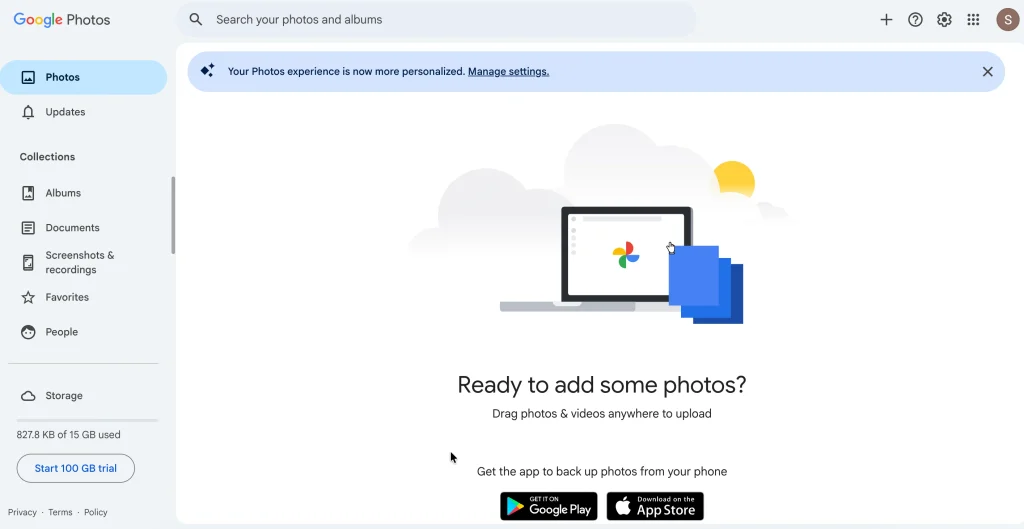
- Best for: Easy edits on-the-go and convenient photo management
- Platforms: Android, iOS, and web
- Official website: https://photos.google.com/
Google Photos not only helps in organizing photos but has some editing options as well. The possibilities of photo cropping, lighting, filters, and suggestions for enhancements are among them. It has some easy to use tools that can be beneficial for starters. Some features powered by AI depend on the device and user location.
Pros:
- Convenient for everyday photographs.
- Simple editing tools.
- Combines photo organisation and enhancement.
- Advanced AI features are available on some supported devices and accounts.
Cons:
- Features vary across devices and accounts.
- Not a substitute for professional RAW editing.
- Photo storage and synchronization depend on account settings and the amount of available storage space.
Pricing:
Basic editing does not require a separate professional editing subscription; storage and other features can cost you some money.
Why choose it?
Google Photos will be best for enhancing family photos, travel photos, and smartphone photos in general.
8. Facetune
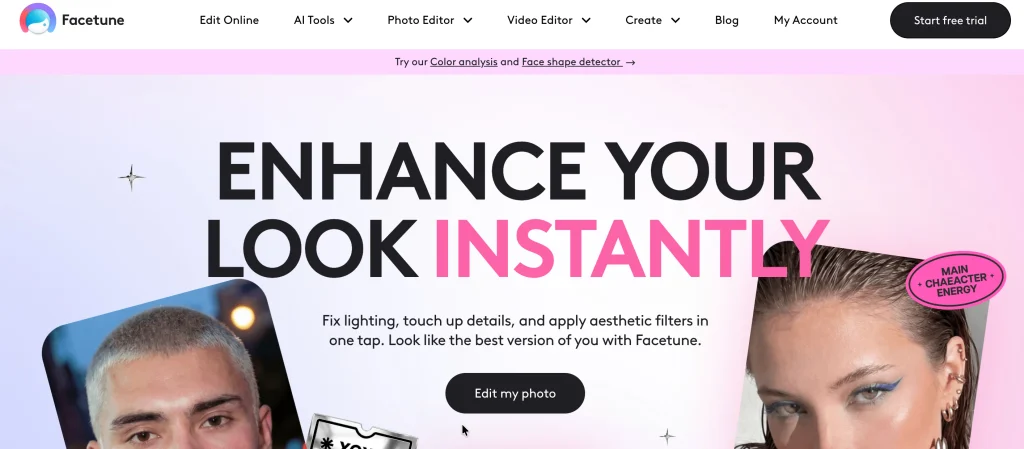
- Best for: Selfies and portrait retouching
- Platforms: Android and iOS, with availability varying by feature.
- Official website: https://www.facetuneapp.com/
Facetune is one of the popular photo editing apps that focuses on portrait editing, allowing users to retouch blemishes, adjust skin tones, enhance facial details, apply various filters, and make appearance changes with the help of AI technology. It is particularly useful for profile pictures, creator portraits, and lifestyle photography. With its specialized portrait editing tools, Facetune is a suitable choice for content creators who primarily focus on portrait photography and visually appealing social media content.
Pros:
- Specialised portrait tools.
- Quick selfie enhancements.
- Accessible editing options.
- Useful for portrait-focused creators.
Cons:
- More advanced features are usually available only via payment.
- It can make the photo look fake if used excessively.
- It works worse for landscape shots and professional RAW.
Pricing:
Some features are free and some require payment.
Why choose it?
Choose Facetune when selfies and portrait enhancement are your main priorities.
9. Photomator
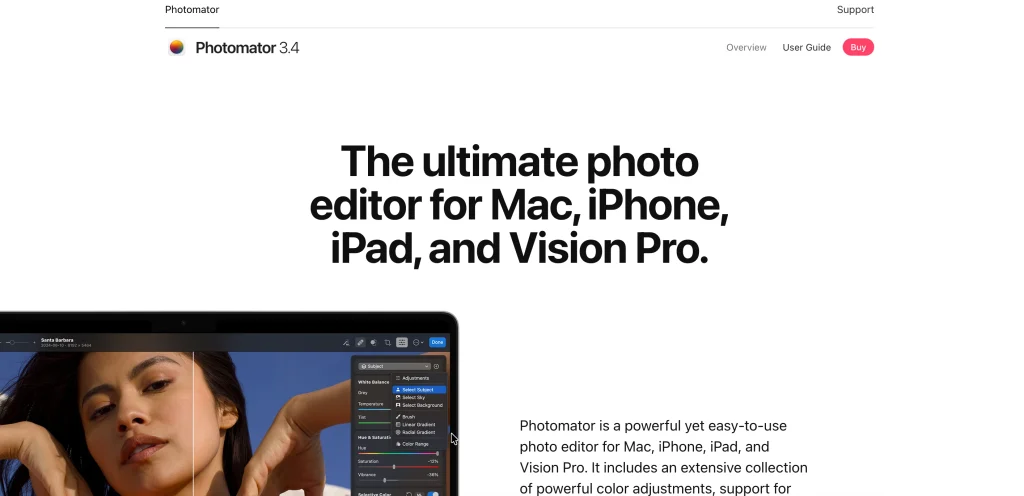
- Best for: Detailed editing within the Apple ecosystem
- Platforms: Compatible Mac, iPhone, and iPad devices.
- Official website: https://www.pixelmator.com/photomator/
Photomator provides advanced colour correction, selective adjustments, RAW processing, retouching, and batch editing for compatible Apple devices. Its tools offer precise control over colour and detail without requiring users to rely exclusively on a large desktop editing suite. It is specifically designed around Apple-device workflows.
Pros:
- Detailed colour controls.
- RAW support on compatible devices and files.
- Selective editing and batch processing.
- Designed around Apple-device workflows.
Cons:
- Limited to supported Apple devices.
- Features and purchase options may vary.
- Less suitable for Android-centred workflows.
Pricing:
Purchase and subscription options can change; check the official website and App Store.
Why choose it?
Photomator is worth considering if you use Apple devices and want a capable photographic editor with advanced adjustment tools.
10. Apple Photos
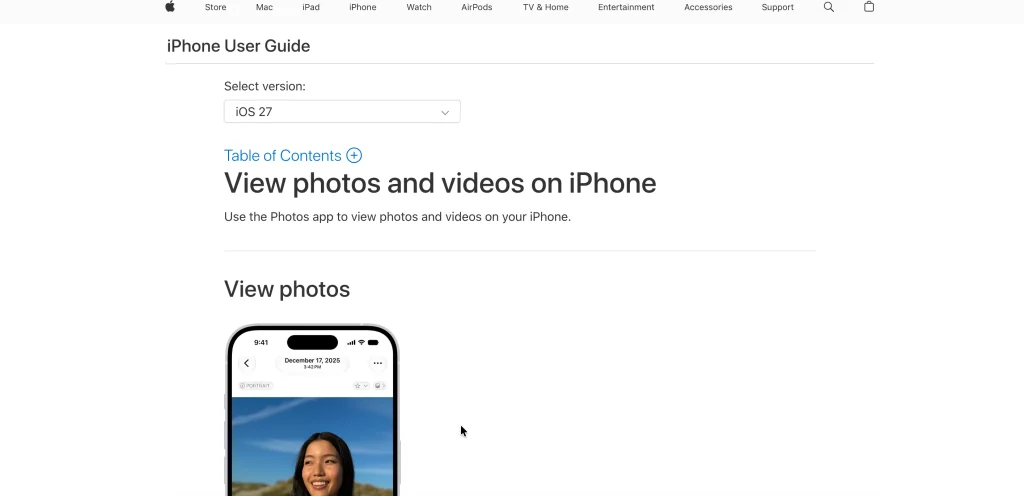
- Best for: Convenient editing on iPhone, iPad, and Mac
- Platforms: Supported Apple devices
- Official website: https://www.apple.com/ios/photos/
Apple Photos is one of the most convenient photo editing apps for Apple users, as it is integrated into Apple’s photo workflow, making it an ideal choice for everyday edits. Users do not need any third-party applications for basic photo adjustments. Depending on the device and software version, they can adjust exposure and color, crop images, apply filters, and access additional editing and organization features to enhance and manage their photos effortlessly.
Pros:
- Integrated into Apple’s ecosystem.
- Useful for quick edits and photo organisation.
- No separate third-party app needed for basic adjustments.
- Simple, convenient workflow.
Cons:
- Advanced tools vary by device and operating-system version.
- Lacks Photoshop’s extensive compositing workflow.
- Professionals may want more detailed controls.
Pricing:
Included with supported Apple devices and software; iCloud storage may incur separate charges.
Why choose it?
Start with Apple Photos if you mainly want to crop, brighten, and improve pictures on an iPhone or Mac.
Comparison of the Best Photo Editing Apps
| App | Best for | Platforms | Pricing model |
| Adobe Lightroom | Photography and colour correction | Mobile, desktop, web | Free with paid plans |
| Adobe Photoshop | Advanced retouching and composites | Desktop, web, supported mobile | Paid plans |
| Snapseed | Free manual editing | Android, iOS | Generally free |
| VSCO | Film-inspired filters | Android, iOS | Free with paid membership |
| Picsart | Creative effects and collages | Android, iOS, web | Free with paid upgrades |
| Canva | Graphics and social media designs | Mobile, web, desktop options | Free and paid plans |
| Google Photos | Everyday editing and organisation | Android, iOS, web | Basic editing free; some features and storage may cost extra |
| Facetune | Selfies and portraits | Android, iOS | Free with paid options |
| Photomator | Apple-focused photo editing | Compatible Apple devices | Check current purchase options |
| Apple Photos | Built-in everyday editing | iPhone, iPad, Mac | Included; cloud storage may cost extra |
Which App Should You Use?
- Beginner Users: Start with Snapseed, Google Photos or any built-in editors.
- Professional Photographers: Pick Lightroom to edit and organise your photographs with the help of Photoshop which provides more complex features.
- Instagrammers and Lifestyle Bloggers: Try out Lightroom for the colour consistency, VSCO for film-like styles and Picsart for some creative editing.
- People that are into selfies: Give a chance to Facetune which was designed especially for editing portraits.
- Students and businesses: For presentations and posters use Canva.
- Apple users: For quick edits start with Apple Photos and consider Photomator for detailed ones.
- Users who are comfortable with the web: Use online editor Pixlr.
AI Photo Editing: What to Check
Use of AI to perform functions such as removing distractions, changing backgrounds, enhancing portraits, and extending the content of images could help to accelerate these processes. Nevertheless, there will be differences in capabilities and outcome between applications.
Before applying any AI editing service, it is necessary to find out:
- Availability: Can the feature be used on my device, operating system, account, or region/country?
- Costing: Is the feature offered for free, credit-based, or accessible only via subscription packages?
- Image quality: Will the editing keep the realistic texture and other visual elements of the image?
- Disclosing: Are the journalistic/academic/publicity/client requirements impose an obligation to disclose significant edits?
- Privacy issues: Does the app work offline or upload edited photos to the server?
Artificial intelligence will not give you a real-life look. Review the final image carefully around your face, hands, haircuts, text overlays, etc.
Photo Privacy and Security Tips
Photos might be filled with private details, locations of interest, or depictions of individuals who have not given consent to having their picture uploaded to the photo modification application service. With a couple of simple steps, some of the unnecessary sharing can be avoided.
- Permissions management: Do not give more permissions than are required for an app to access specific photos and your device’s features.
- Cloud settings: Make sure that you know if the originals and modifications of your photos are stored online.
- Protect sensitive photos: Do not upload any private photos, identity-related photos, confidential photos or photos of your clients without being fully aware of how data is handled on the website.
- Subscription details review: Check the expiration dates of your subscriptions, how to cancel them, and what will happen to your cloud-based content if you unsubscribe.
- Keep the originals: Store the untouched photos before making substantial changes.
- Metadata check: Consider if you need to modify the metadata that may contain extra details that you would prefer to keep private.
Tips for Better Photo Editing
- Get the fundamentals right first: Alter exposure, color balance, and contrast before using filters.
- Be conservative with saturation: Ensure colors are vivid, yet realistic.
- Be careful with presets: Treat them as guides and not a solution for all.
- Maintain realism: Ensure you don’t over-smooth and over-sharpen skin.
- Compare against the original: Evaluate if your alterations do make improvements on the original picture.
- Tailor your editing to the medium: Social media postings, website banners, and big posters may need unique crops and exporting methods.
- Export at the right quality: Select the proper resolution and file formats.
- Save the original copy: Always have the freedom to go back to that photo without the need of an edited version.
- Check the borders: Be wary of halos, strange cropping, repetition of textures from healing brush and AI software.
Conclusion
Choosing the best photo editing apps depends on multiple factors. Lightroom is great for photography and color correcting, Photoshop for difficult manipulations, and Snapseed for manual editing without paying a cent. Film-inspired photography will be achieved with the VSCO app, creative experiments in PicsArt, designs in Canva; easy enhancement can be done using Google Photos.
One does not have to get every single application mentioned in the list above; just choose an appropriate one, learn how to use it, and consider getting other applications only when the selected one does not provide necessary features anymore. It would be wise to look for current cost of subscriptions as well as limits and conditions of free usage.
Good editing is definitely not about how crazy the edited photo looks; it is all about realizing the potential of a photo without losing what was so great about the moment itself.
Frequently Asked Questions
1. What is the Best Photo Editor App Overall?
Adobe Lightroom provides an excellent combination for color correction, exposure, presets, and work flows with photos. Photoshop performs better in manipulation, and Snapseed is a great free photo editor for manual editing.
2. What is the Best Free Photo Editing App?
As for the question about the best free photo editor, Snapseed is suitable for manual editing. Google Photos, phone editors, Canva can be used for free photo enhancing and design.
3. What is the Best Photo Editing App for Instagram?
In Instagram you will need to do colors consistently, so Lightroom will work well for that. VSCO app will work for film-inspired styles, while Picsart can provide interesting photo effects and creative editing. Canva should be used when you have any text and graphics included in your post.
4. Is it Worth Paying for a Photo Editor App?
This may pay off in case you require RAW editing, masking, bulk editing or professional retouching. There are no reasons to pay if the free ones do well in those cases.
5. Do Photo Editing Applications Put Watermarks?
Watermarking is application specific and depends on your subscription level and mode of export. It is advised to review current exporting and subscription terms prior to editing photos en masse.
6. Can One Edit RAW Photos Via a Smartphone?
While some applications do offer RAW photo editing functionality, you have to check for device and file compatibility. Lightroom and Photomator are potential candidates to consider here.
7. Is Offline Editing Possible with Photo Editing Applications?
Offline editing is available for some applications that store edited files locally, whereas other web and cloud-based solutions require internet connection.
